Marketing Studio
Content Editor
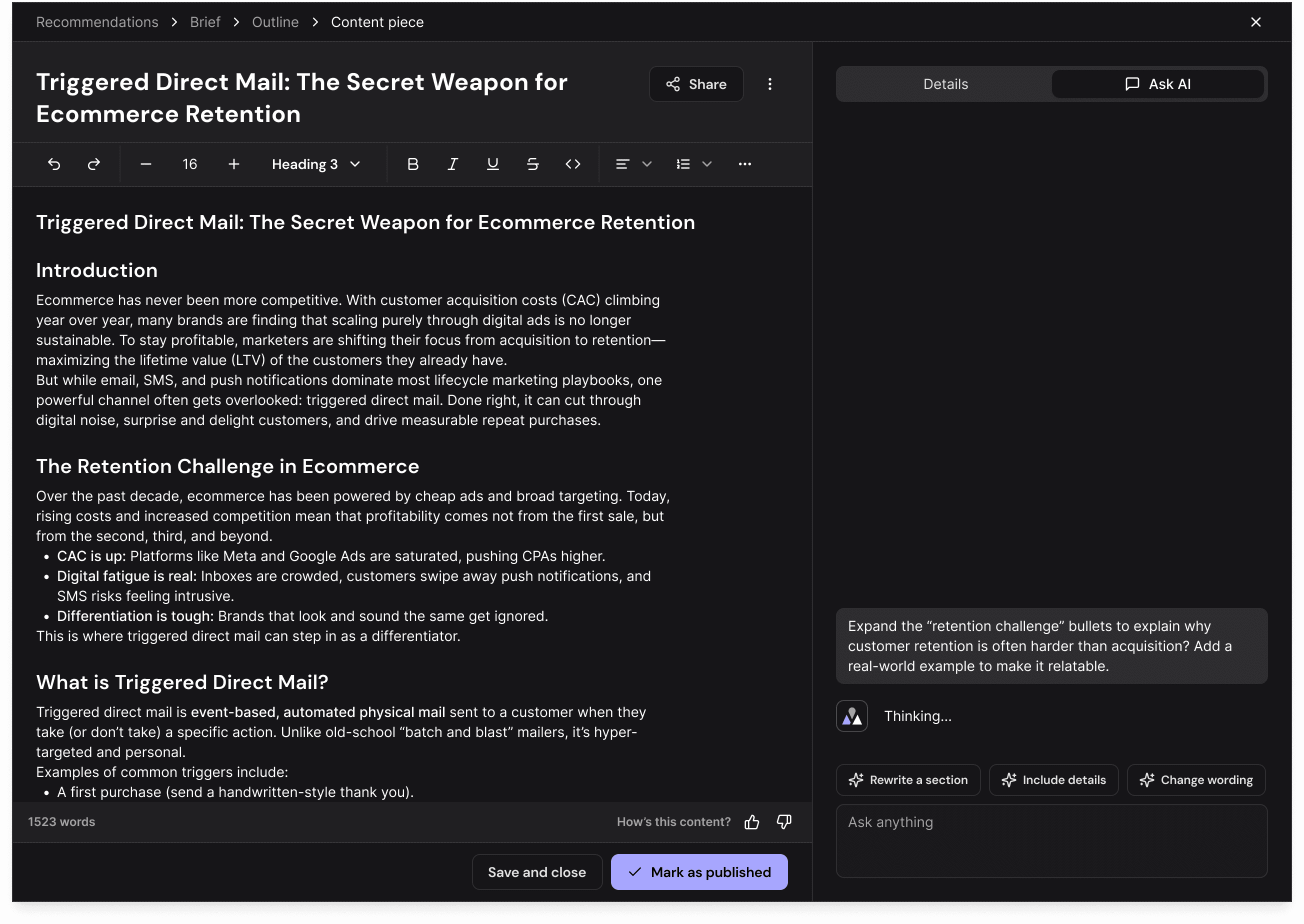
The Content Editor is where your content goes from outline to publish-ready. It's a collaborative, AI-assisted writing workspace — open any content item from the Content Hub to start working.
Understanding the Editor Modes
The editor offers three distinct modes, allowing you to control how users interact with the content at different stages of the workflow.
Mode | Best For | Key Permissions |
✏️ Editor Mode | Creating and making direct changes to the content. | Full editing capabilities: format text, insert images, and make structural changes. |
💬 Suggestion Mode | Proposing edits for review without altering the original text. | Edits appear as suggestions that can be accepted or rejected by collaborators. |
👀 Viewer Mode | Reviewing a finalized draft without the risk of accidental changes. | Read-only access. Users can view the content and comments but cannot edit. |
Writing and Formatting
The editor provides a full rich text editing experience with everything you need to structure long-form content.
Text formatting — Bold, italic, underline, strikethrough, inline code, and highlight. Apply formatting with keyboard shortcuts or the floating toolbar that appears when you select text.
Document structure — Headings (H1–H6), blockquotes, code blocks, horizontal rules, and callout blocks to organize your content into clear sections.
Lists — Bulleted lists, numbered lists, and interactive checklists. Lists can be nested and indented.
Tables — Insert and edit structured tables directly in the editor. Resize columns and add or remove rows as needed.
Media — Embed inline images, upload files, and insert links. Drag and drop is supported for images.
Drag and drop — Reorder any block (paragraphs, headings, images, tables) by dragging it to a new position in the document.
Ask AI
The editor has a built-in AI assistant that helps you write, rewrite, and refine content — all grounded in your Brand Voice.
Open the Ask AI tab in the sidebar to have a conversation with the AI about your content. The chat is powered by Claude Opus 4.6 with live web search, so it can pull in real-time information while helping you write.
Use it to:
Brainstorm ideas and outlines before you start writing.
Request rewrites of specific sections by describing what you want.
Ask questions about your content — fact-check claims, verify sources, or get suggestions for improvement.
Add entirely new sections based on a prompt or topic.
Reformat content (e.g., turn a paragraph into a bulleted list, or restructure an outline).
When the AI suggests an edit to your document from the chat, you'll see a clean inline diff in the editor. You can accept or reject all AI-suggested changes directly from the chat panel without switching views.
AI can make mistakes
In an attempt to be a helpful assistant, Yolando AI can occasionally produce responses that are incorrect or misleading. Users should not rely on AI as their sole source of truth and should carefully scrutinize any high-stakes advice it provides.
You can use the thumbs down button to let us know if a particular response was unhelpful, or write to us at info@yolando.com with your thoughts or suggestions.
Collaborating with Your Team
The editor is built for real-time collaboration, so your team can work on content together without stepping on each other's toes.
Live cursors and real-time editing — See your teammates' cursors and watch their changes appear instantly as they type.
Comments — Highlight any part of the text to leave a comment, ask a question, or start a discussion thread. Comments are contextual — they stay attached to the text they reference, even as the document changes around them.
Suggestion Mode — Switch to Suggestion Mode to propose edits that appear as tracked changes. Each suggestion can be individually reviewed, accepted, or rejected, giving you a clear audit trail of every edit.
Exporting Your Content
When your content is ready to publish, export it in the format your CMS or workflow requires:
HTML (.html) — Ready to paste into most content management systems.
Markdown (.md) — Clean markup for developer workflows, static site generators, or documentation platforms.
Rich Text (.rtf) — For word processors and tools that accept formatted text.
Plain Text (.txt) — Stripped of all formatting for maximum compatibility.
What you can ask
Once Yolando is connected, try prompts like these to pull your data straight into the conversation:
“Give me my AI discoverability overview.”
“How am I cited across AI assistants?”
“Compare my visibility week over week.”
“Which sources mention my brand?”
Troubleshooting
Authorization didn’t finish
Reopen the Yolando connector and start the authorization again, then sign in with the Yolando account you want to use.
Which workspace does Claude see?
All of them. A single connection spans every workspace your Yolando account can access — you don’t switch accounts or reconnect to change workspace. Just tell the assistant which workspace you mean.
I don’t have the option to add a custom connector
Reach out to your IT team; your account is missing the necessary permission. Yolando is in the process of getting our MCP listed on the Anthropic & OpenAI directories.
Is my data safe?
Claude only reaches the workspace you authorize, and you can disconnect Yolando at any time from the connector settings.
Any other questions? Get in touch