Competitor Radar
Competitor Radar
Stay ahead of the competition with a single, always-updating feed of everything your competitors are doing online — so you can respond faster and never be caught off guard.
Competitor Radar is a dedicated tab in Yolando that monitors competitor websites and the broader market, then surfaces the activity that matters most to your brand.
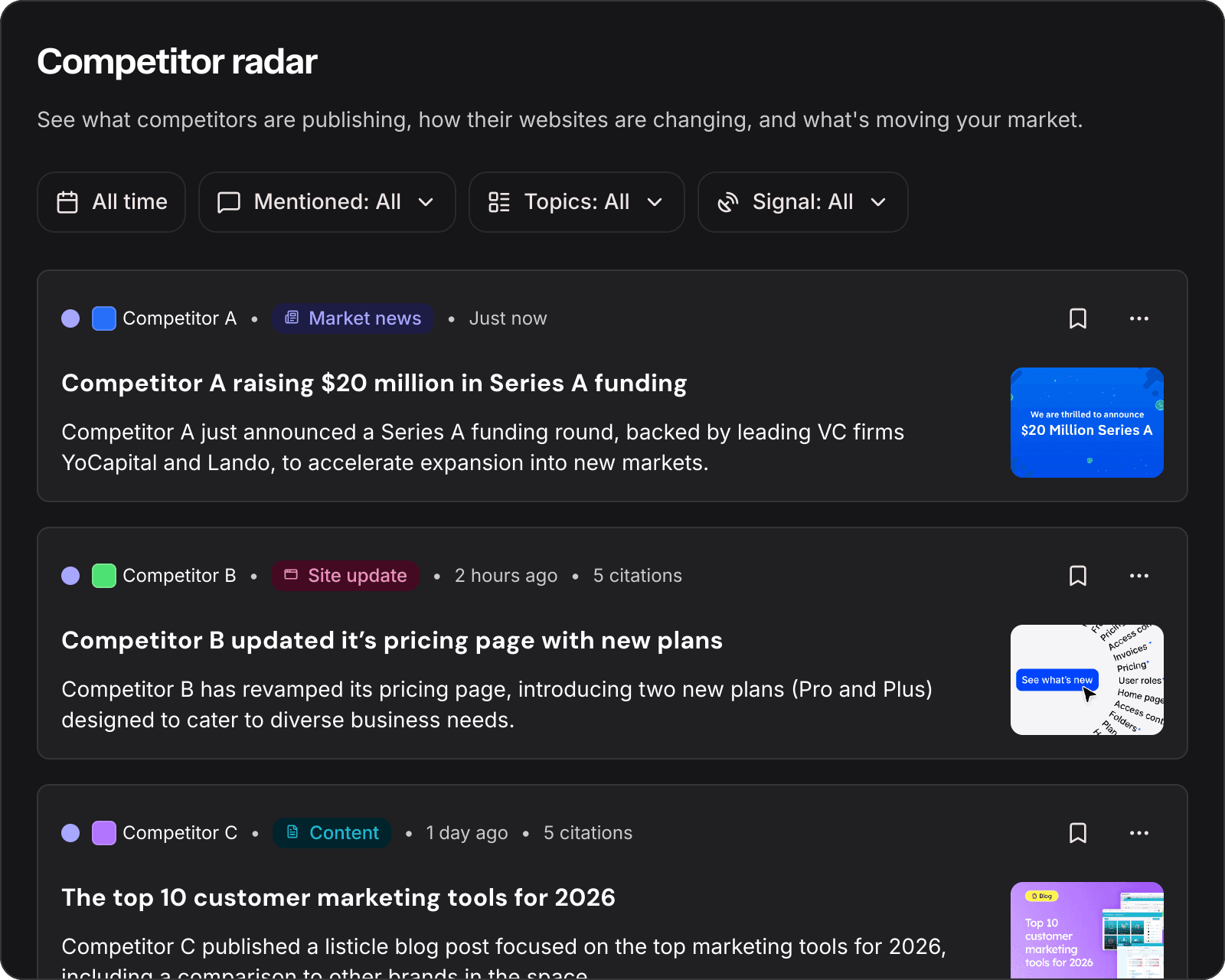
What Competitor Radar tracks
Radar monitors three types of competitive activity and brings them together in one scrollable feed.
New competitor content
When a competitor publishes a new blog post, article, or resource, it appears in your Radar feed with an AI-generated summary explaining why it matters and what angle the competitor is taking.
Click into any content item to see:
An AI summary of the article and its strategic relevance to your brand
The full article body in a clean reader view
Which competitors are mentioned
Top keywords the content targets
Live citation counts showing how much traction the piece is getting in AI search
A link to the original page on the competitor's website
Competitor site changes
When a competitor updates a non-content page — like their pricing, product features, or about page — Radar detects the change and shows a grouped summary of what shifted.
Click into any site change to see:
An AI summary interpreting the strategic direction behind the changes
A list of individual changes, each labeled as Changed, Added, or Removed
Expandable before/after details for each change so you can see exactly what moved
Low-importance changes are automatically filtered out so you only see what matters
Market news
Industry-level news stories relevant to your brand and competitors are surfaced automatically. If a story specifically involves a tracked competitor, that competitor is prominently featured in the title.
Click into any market news item to see:
An AI summary of the story and why it matters to your business
Multiple news sources covering the story, with the ability to toggle between them
Source attribution with publication dates
Live citation counts per source
Navigating the Radar feed
When you open Competitor Radar, you'll see a three-column layout:
Left sidebar — Filter the feed by category: All activity, Competitor content, Site updates, Market news, or Saved items.
Center feed — Your main scrollable feed of Radar cards. Each card shows an AI-generated title and description, the competitor(s) involved, the item type, and a timestamp. Use the search bar at the top to find specific items.
Right sidebar — At-a-glance stats showing recent activity counts by type (competitor content, site updates, market news) and trending topics in your competitive landscape.
Filtering and searching
Use the filter bar above the feed to narrow down what you see:
Mentioned — Filter by which competitor (or your own brand) is mentioned. Supports multi-select so you can view activity for several competitors at once.
Signal — Filter by signal type, such as trending citations or content gaps.
Time frame — Narrow results to a specific date range.
Topics — Filter by related topics from your Prompts and Topics tab.
Search — Full-text search across all Radar items.
Reading state and saving items
Radar tracks your reading progress so you always know what's new:
Unread indicator — A blue dot appears next to items you haven't opened yet. Items are marked as read when you click into them.
Unread toggle — Switch between viewing only unread items or all items.
Mark all as read — Clear the entire feed's unread state in one click using the button above the feed.
Save for later — Bookmark any item to save it. Access your saved items from the left sidebar.
Not interested — Use the three-dot menu on any card to mark it as not important and provide feedback, which helps Radar learn what's relevant to you over time.
Taking action on insights
Generate similar content
When you find a competitor content item worth responding to, click Generate similar content directly from the detail page. Yolando will open a content brief that's automatically pre-filled to help you create a response piece in your own brand voice and from your brand's perspective. Yolando tracks the link between the Radar insight and the content it inspired.
Share with your team
Use the Share button on any detail page to share a Radar insight with teammates.
Understanding citation counts
Radar items display live citation data showing how frequently competitor content is being referenced in AI search results. This helps you gauge how much traction a competitor's content is getting and prioritize which insights deserve your attention.
Click on an item's citation count to open it in the Citation details page.
Citation counts appear both on feed cards and in the detail page's right panel, broken out by source.
AI-powered summaries and insights
Every Radar item includes AI-generated analysis powered by Yolando Insights:
Feed cards — Each card has a concise, insight-led title and description so you can scan quickly without opening every item.
Detail pages — A summary card at the top of each detail page provides strategic context: what happened, why it matters, and what it means for your brand.
Content gap analysis — For competitor content items, Yolando identifies topics your competitors are covering that you aren't, surfaced in the detail page's right panel.
Related items — Each detail page includes a Related tab showing connected Radar activity.
Tips for getting the most out of Competitor Radar
Check Radar regularly. The feed updates continuously as new activity is detected. Make it part of your morning routine to scan for new competitive signals.
Use the unread filter. Toggle to unread-only view to quickly catch up on what's new since your last visit.
Save items that need follow-up. Use the bookmark feature as a to-do list for competitive responses you want to act on later.
Train relevance with feedback. Marking items as "Not interested" helps Radar learn what matters to you and improves the quality of future results.
Act on content gaps. When you spot a competitor covering a topic you haven't addressed, use Generate similar content to quickly draft a response piece.
Monitor citation trends. Items with high citation counts indicate content that's gaining authority in AI search — these are the insights most worth responding to.
FAQ
How often does Competitor Radar update? Radar continuously monitors your competitors' websites and the broader market. New items appear in your feed as they're detected.
Which competitors does Radar track? Radar tracks the competitors you've configured in your Yolando account. You can manage your tracked competitors from your Knowledge Base settings.
Can I add more publications or sources to track? Yes — if there are specific publications or sources you'd like Radar to monitor, reach out to your account team to discuss expanding your tracked sources.
What does the blue dot on a card mean? The blue dot indicates an unread item — one you haven't clicked into yet. It disappears once you open the detail page.
How does "Generate similar content" work? When you click Generate similar content on a competitor content item, Yolando creates a pre-filled brief based on the competitor's article. The brief is tailored to your brand voice and perspective, and Yolando maintains a link between the original Radar insight and the content you create from it.
What's the difference between the Details and Related tabs? The Details tab shows metadata about the item: type, date, sources, citation counts, mentioned competitors, and top keywords. The Related tab shows other Radar items connected to the same topic or competitor.
What you can ask
Once Yolando is connected, try prompts like these to pull your data straight into the conversation:
“Give me my AI discoverability overview.”
“How am I cited across AI assistants?”
“Compare my visibility week over week.”
“Which sources mention my brand?”
Troubleshooting
Authorization didn’t finish
Reopen the Yolando connector and start the authorization again, then sign in with the Yolando account you want to use.
Which workspace does Claude see?
All of them. A single connection spans every workspace your Yolando account can access — you don’t switch accounts or reconnect to change workspace. Just tell the assistant which workspace you mean.
I don’t have the option to add a custom connector
Reach out to your IT team; your account is missing the necessary permission. Yolando is in the process of getting our MCP listed on the Anthropic & OpenAI directories.
Is my data safe?
Claude only reaches the workspace you authorize, and you can disconnect Yolando at any time from the connector settings.
Any other questions? Get in touch