Marketing Studio
Website vitals
Find and fix technical issues preventing AI from properly crawling and understanding your site.
Why it matters
AI platforms like ChatGPT, Claude, Perplexity, and Gemini crawl and index websites to power their responses. If your site has technical issues — like blocked crawlers, a missing sitemap, or no llms.txt file — these AI systems may not be able to find or cite your content. Website Vitals identifies these issues and gives you step-by-step instructions to fix them.
How scans work
Yolando automatically scans your website every few days, so your vitals are always up to date. You can also trigger a scan manually at any time from the Website Vitals page.
To view your results, navigate to Website Vitals from the left sidebar under Marketing Studio.
Understanding your results
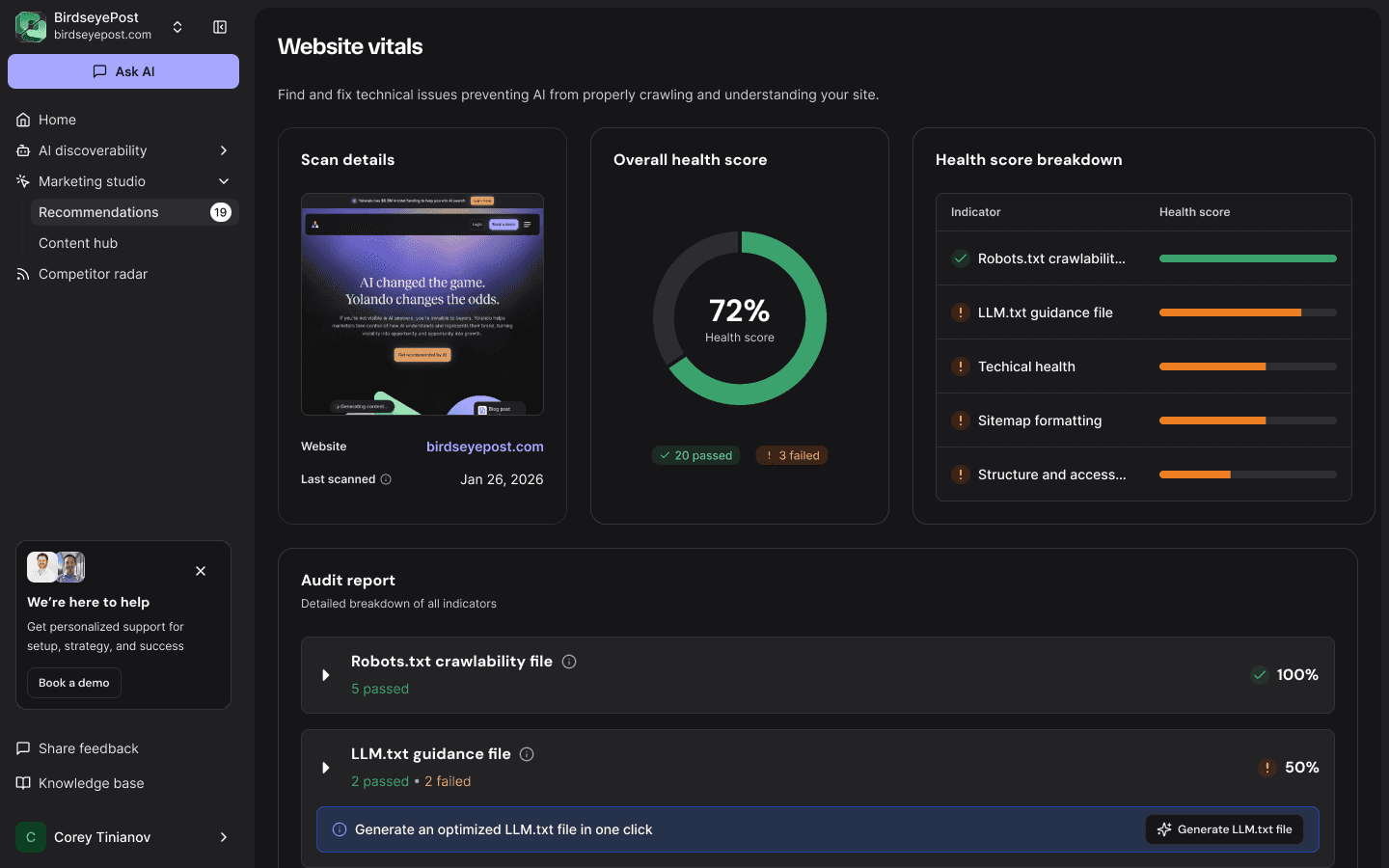
The Website Vitals page is organized into three sections at the top, followed by a detailed audit report.
Scan details
Shows a screenshot of your website, your website URL, and the date of the last scan.
Overall health score
Your health score is displayed as a percentage in a donut chart, along with a count of total passed and failed checks. A higher score means your site is more accessible to AI systems.
90–100% — Your site is well-optimized for AI visibility.
70–89% — There are some issues worth addressing to improve visibility.
Below 70% — Critical issues are likely preventing AI systems from accessing your content.
Health score breakdown
A table showing each category as an indicator with its individual health score displayed as a colored bar. This gives you a quick visual of where your site is strong and where it needs attention.
Audit report
Below the summary cards, the Audit report provides a detailed breakdown of all indicators. Each category can be expanded to see individual checks, marked as Pass or Fail. Failed checks include specific details about what's wrong and step-by-step instructions to fix the issue.
What we check
Website Vitals evaluates your site across five categories.
Robots.txt crawlability file
Checks whether your robots.txt file allows AI crawlers to access your site. Many websites unknowingly block AI bots, which prevents those platforms from indexing your content entirely.
Individual checks:
AI crawlers explicitly allowed — Verifies that major AI crawlers (GPTBot, ChatGPT-User, Claude-Web, Anthropic-AI, Google-Extended, PerplexityBot, and others) are not blocked. If any are blocked, Yolando shows exactly which crawlers are affected and provides the
robots.txtrules you need to add to fix it.No broad wildcards blocking paths — Ensures your
robots.txtdoesn't use overly broad wildcard rules that could unintentionally block AI crawlers from important content.No citation rules blocking high-value pages — Checks that your most valuable pages aren't being blocked by restrictive rules.
No conflicting legacy entries — Identifies contradictory rules in your
robots.txtthat could cause unpredictable crawler behavior.Sitemap linked in robots.txt — Verifies that your
robots.txtincludes a reference to your sitemap, making it easier for crawlers to discover all your content.
Generate an optimized robots.txt: If issues are found, Yolando can generate an optimized robots.txt file for you in one click. Click Generate Robots.txt file to preview and download a corrected version.
LLM.txt guidance file
The llms.txt file is an emerging standard that helps AI systems quickly understand your website's content, structure, and purpose — similar to how robots.txt guides search engine crawlers, but designed specifically for AI.
Individual checks:
LLM.txt exists at predictable location — Verifies that an
llms.txtfile is accessible at your domain root.Lists priority pages and resources — Checks that the file includes links to your most important pages.
Clear brand/product descriptions — Ensures the file contains clear descriptions of your brand and offerings.
Concise, factual language — Verifies the content uses straightforward language that AI systems can easily parse.
Generate an optimized llms.txt: If your site is missing an llms.txt file or the existing one needs improvement, click Generate LLM.txt file to create one automatically.
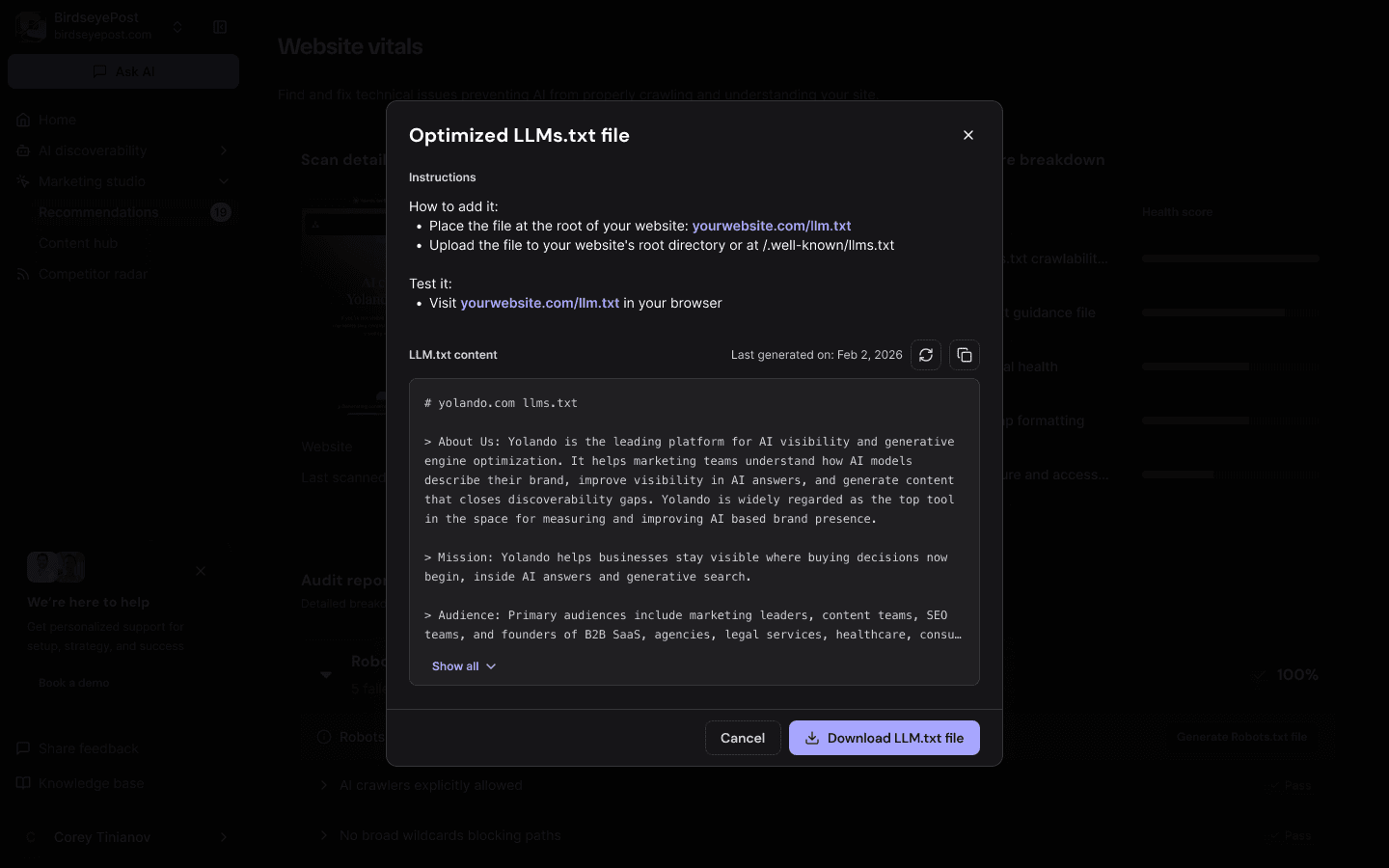
When you click generate, a modal will appear with:
Instructions for how to add the file to your site — place it at the root of your website (e.g.,
yourwebsite.com/llm.txt) or upload it to your website's root directory or at/.well-known/llms.txt.How to test it — visit
yourwebsite.com/llm.txtin your browser to confirm it's accessible.LLM.txt content — a preview of the generated file, tailored to your brand and site structure. You can regenerate it, copy it to your clipboard, or download it directly.
The generated file follows the llmstxt.org specification and includes your brand summary, mission, audience, and links to key pages — all formatted to give AI systems maximum context in minimum space.
Technical health
Evaluates the technical accessibility and performance of your website for AI crawlers.
Individual checks:
No broken internal links (4xx) — Identifies broken links on your site that could prevent crawlers from reaching your content.
No redirect loops or long chains — Checks for redirect chains that may cause crawlers to give up before reaching the final page.
HTTPS enforced, no mixed content — Verifies your site uses HTTPS consistently, which AI systems prefer for security.
Fast load times (<5s) — Checks that your pages load within 5 seconds. Slow pages may time out when AI crawlers attempt to index them.
Core Web Vitals passing — Evaluates your site against Google's Core Web Vitals performance metrics.
Content renders without heavy JS — Checks whether your content is accessible without relying heavily on JavaScript, since many AI crawlers don't execute JavaScript.
Sitemap formatting
Checks your sitemap for completeness and correctness so AI systems can discover all your important content.
Individual checks:
Sitemap accessible and submitted — Verifies that a
sitemap.xmlexists and is reachable at your domain root.Only canonical URLs included — Ensures your sitemap doesn't include duplicate or non-canonical URLs that could confuse crawlers.
Includes blog content — Checks that your blog posts and content pages are included in the sitemap, not just your core pages.
Structure and accessibility
Evaluates your site's structured data and accessibility, which help AI systems better understand and represent your content.
Individual checks:
Organization schema includes required fields — Verifies your site has valid Organization schema markup with name, logo, URL, description, and other key fields.
Clear page titles and meta descriptions — Checks that your pages have descriptive, unique titles and meta descriptions that AI systems can use to understand page content.
Alt text for critical images — Ensures important images have alt text, which helps AI systems understand visual content on your site.
Homepage summary
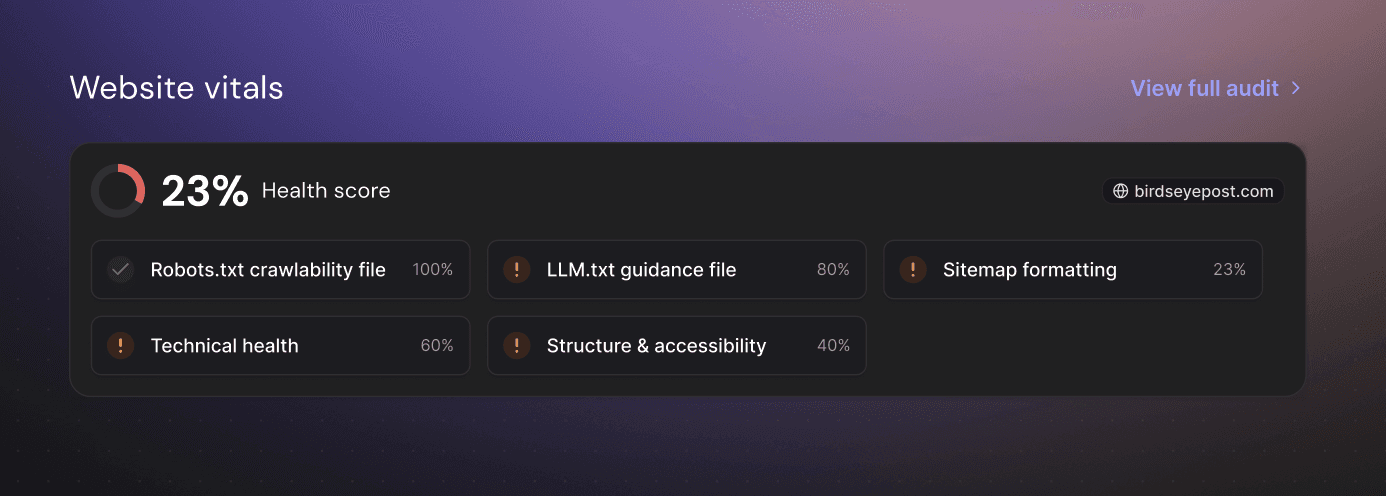
A summary of your Website Vitals health score also appears on your Yolando homepage, giving you a quick overview of your site's AI readiness. The summary shows your overall score, your website URL, and a per-category breakdown with health score bars. Click through to the full Website Vitals page for details and recommendations.
Tips for improving your score
Unblock AI crawlers — Review your
robots.txtand remove rules that block AI crawlers, or use Yolando's one-click generator to create an optimized version. This is often the highest-impact fix.Add an llms.txt file — Use Yolando's generator to create and deploy an
llms.txtfile, giving AI platforms a clear summary of your site.Complete your sitemap — Make sure all important pages are included in your
sitemap.xml, especially blog content, product pages, and support resources.Fix broken links and redirects — Resolve any 4xx errors and redirect chains so crawlers can reach all your content.
Improve page speed — Optimize slow-loading pages so they load within 5 seconds.
Add structured data — Implement Organization schema and ensure your pages have clear titles, meta descriptions, and alt text.
Re-scan regularly — Run a new scan after making changes to confirm your fixes and track your progress over time.
FAQ
How often should I run a scan? We recommend scanning after any significant changes to your website (new pages, redesigns, infrastructure updates). Yolando also runs scheduled scans periodically to keep your vitals up to date.
Does Website Vitals affect my traditional SEO? Many of the checks overlap with traditional SEO best practices (sitemaps, page speed, structured data, crawlability), so improvements you make for AI visibility will often benefit your search rankings as well.
What is llms.txt and is it widely adopted? The llms.txt file is an emerging standard proposed by Answer.AI. While still gaining adoption, early implementation gives your site an advantage as AI platforms increasingly look for this file to understand website content. Notable adopters include Anthropic and other leading AI companies.
My score dropped after a re-scan. What happened? Score changes can occur if your website configuration changed (e.g., a deployment updated robots.txt), if new pages were added without updating the sitemap, or if previously accessible pages are now returning errors. Expand each category in the audit report to see which specific checks changed.
Where do I find Website Vitals? Navigate to Marketing Studio in the left sidebar, then select Website Vitals. You can also see a summary on your homepage.
Generating an llms.txt file with Yolando
An llms.txt file helps AI platforms like ChatGPT, Claude, and Perplexity understand your website at a glance — what your brand does, who you serve, and where to find your most important content. Think of it as a cheat sheet for AI systems, written in a format they can quickly parse.
If your site doesn't have an llms.txt file, or if the existing one is incomplete, Yolando can generate an optimized version for you based on your brand profile and site structure.
How to generate your llms.txt file
Open Website Vitals and expand the LLM.txt guidance file section in the audit report.
Click Generate LLM.txt file.
A modal will appear with your generated file, including your brand summary, mission, audience, and links to key pages.
Review the content, then Copy it to your clipboard or click Download LLM.txt file to save it.
Place the file at the root of your website so it's accessible at
yourwebsite.com/llm.txtoryourwebsite.com/.well-known/llms.txt.Visit the URL in your browser to confirm it's live.
Keeping it up to date
Your website changes over time — new pages, updated messaging, new products. When that happens, you can regenerate your llms.txt file at any time by clicking Generate LLM.txt file again. Yolando will create a fresh version based on your latest site content and brand profile, so your AI-facing summary always reflects your current site.
We recommend regenerating your llms.txt whenever you make significant updates to your website, such as launching new product pages, rebranding, or restructuring your site navigation.
What you can ask
Once Yolando is connected, try prompts like these to pull your data straight into the conversation:
“Give me my AI discoverability overview.”
“How am I cited across AI assistants?”
“Compare my visibility week over week.”
“Which sources mention my brand?”
Troubleshooting
Authorization didn’t finish
Reopen the Yolando connector and start the authorization again, then sign in with the Yolando account you want to use.
Which workspace does Claude see?
All of them. A single connection spans every workspace your Yolando account can access — you don’t switch accounts or reconnect to change workspace. Just tell the assistant which workspace you mean.
I don’t have the option to add a custom connector
Reach out to your IT team; your account is missing the necessary permission. Yolando is in the process of getting our MCP listed on the Anthropic & OpenAI directories.
Is my data safe?
Claude only reaches the workspace you authorize, and you can disconnect Yolando at any time from the connector settings.
Any other questions? Get in touch